Pantheon Secrets Guide
Create new secret
Learn how to create a new secret using either the Dashboard or the CLI.
Before you begin
- Determine what owning entity is appropriate for the given secret (site vs org).
- Only site-owned secrets can be managed via the dashboard interface, setting organization-owned secrets is only supported via the command-line.
- Determine the secret type and secret scope required for your given scenario:
- For example, setting an API key for third-party email integration should use the
runtimetype andwebscope.
- For example, setting an API key for third-party email integration should use the
- Consider whether your scenario requires different values based on the given environment.
- For example, if you want to use different accounts on live and non-live environments for your site's third-party email integration.
- If yes, first create the secret with your non-live API key and then add an environment override for that new secret to change the API key for the live environment.
- For example, if you want to use different accounts on live and non-live environments for your site's third-party email integration.
Create new secret
From the dashboard
Only site-owned secrets can be managed via the Dashboard interface. Creating and managing organization-owned secrets must be done from the command-line.
-
Go to the Site Dashboard and click Site Settings.
-
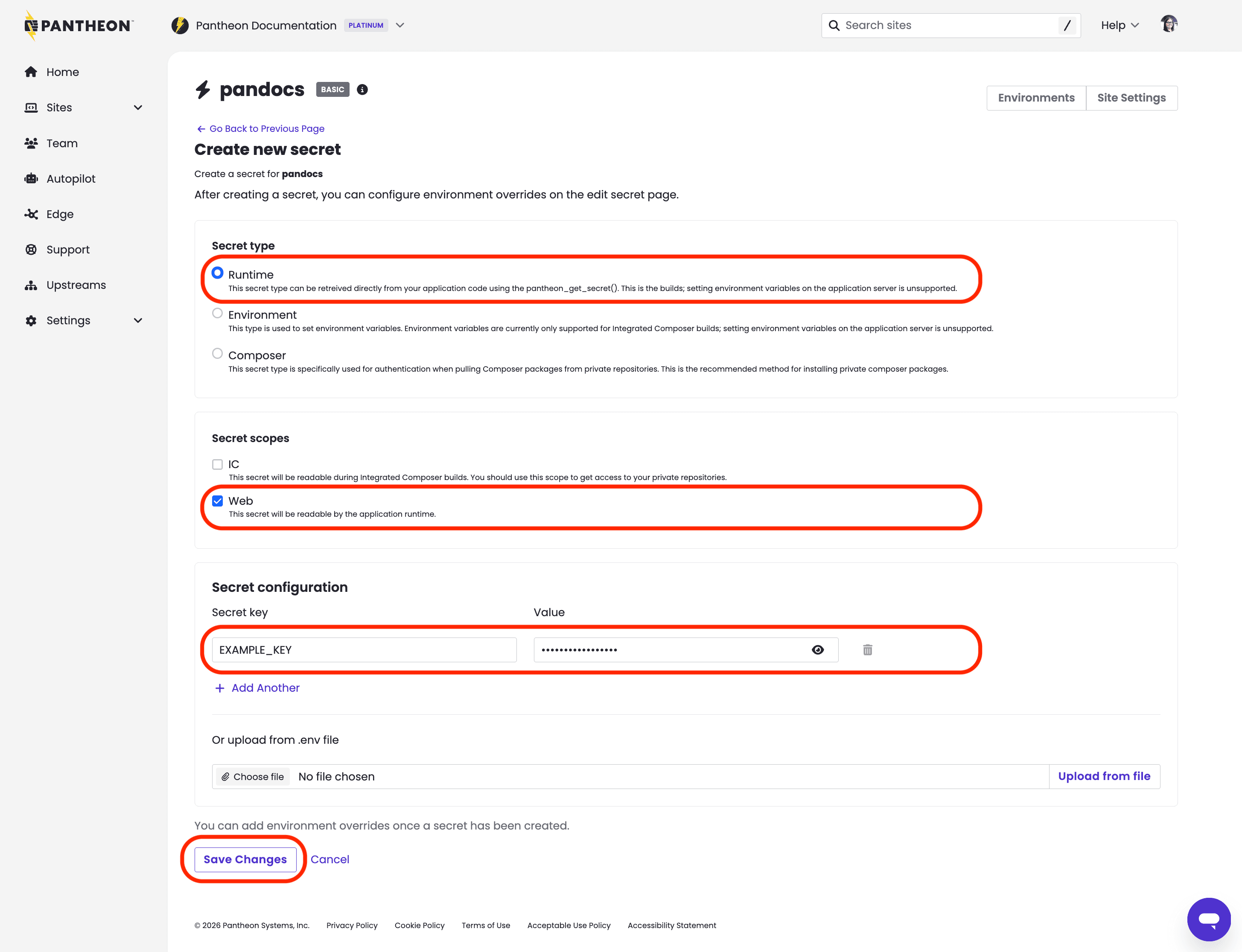
Click into the Secrets tab then click + Create new secret.
-
Select the appropriate
typeandscopebased on your given scenario, then enter your key name and value.
 Information:Note
You can create one or more secrets at a time via the dashboard interface. After entering your first key/value pairs, click + Add another if you have additional secrets to set.
Additionally, developers managing environment variables for Next.js sites through
.envfiles can add those variables in bulk when creating secrets. -
Click Save Changes.
From the command-line
Secrets management commands require Terminus 4.2.0 or later. Run terminus --version to check your installed version, and terminus self:update to upgrade if needed.
-
Install and authenticate Terminus if you have not done so already.
-
Run the following command to set EITHER a site-owned secret (replace
<site><secret_name><secret_value><secret_type>and<secret_scope>):-
OR set an organization-owned secret (replace
<org><secret_name><secret_value><secret_type>and<secret_scope>):
-
Add environment override
Environment overrides are used for scenarios that require different values for a single key based on the given environment detected. Best practice usage is to set the non-production value first as the default during key creation, and then edit the new key by adding an environment override for live.
From the dashboard
- Create the key using a default value first if you have not done so already.
- Go to the Site Dashboard and click Site Settings.
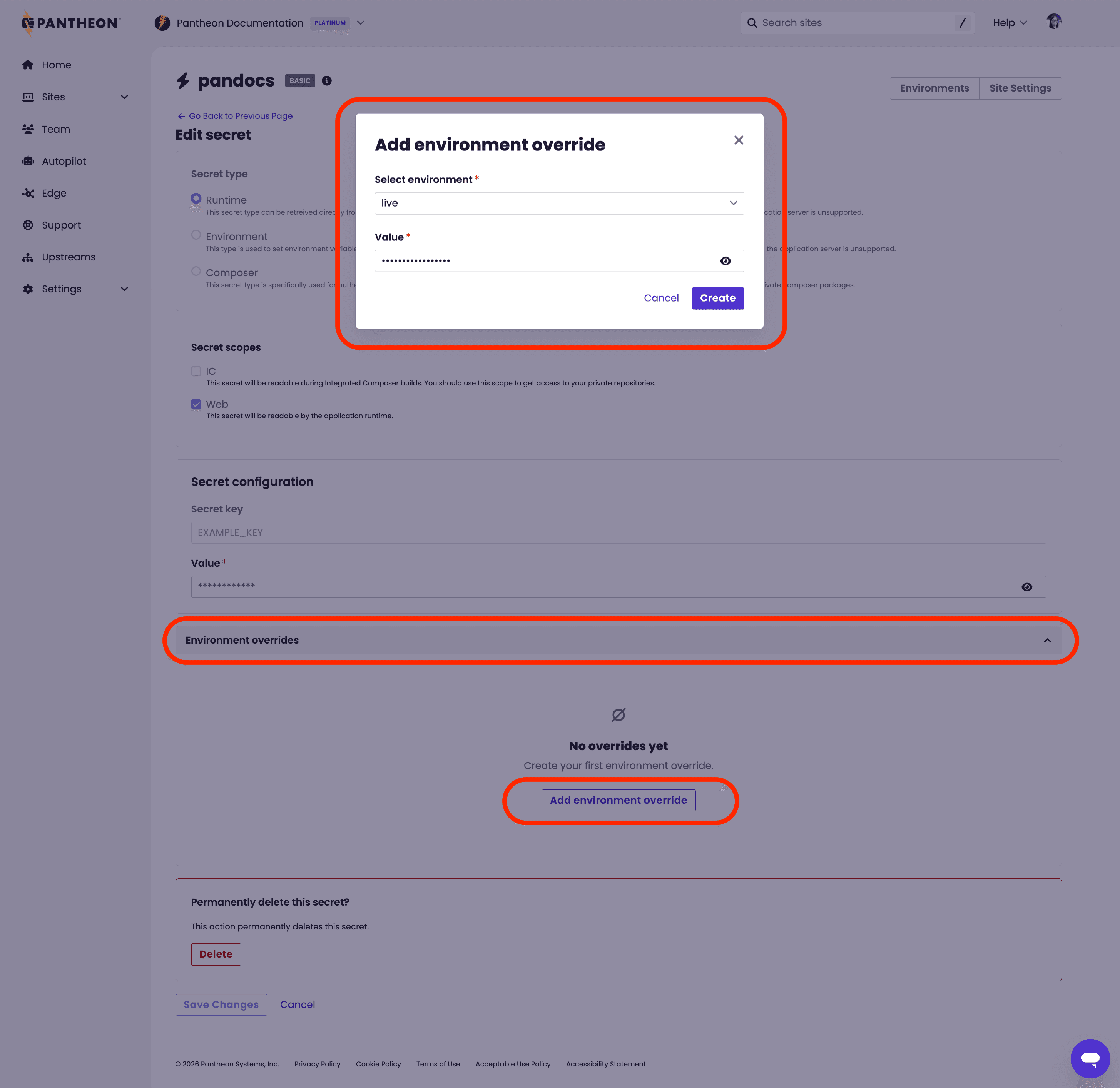
- Click into the Secrets tab then click Edit secret.
- Open the Environment overrides dropdown and click Add environment override.
- Select which environment this override should apply to, then enter the value and click Create:
From the command-line
-
Create the key using a default value first if you have not done so already.
-
Run the following to set an environment override (replace
<site><env><secret_name>and<secret_value>):
Next Steps
This feature works with WordPress, Drupal, and Next.js sites hosted on Pantheon. After secret creation, your application will require additional configuration to make use of these key/value pairs. See the following documentation for usage based on your site framework: