Creating and Revoking Personal Access Tokens
Learn how to create a Personal Access Token (PAT) in order to use Terminus on your Drupal or WordPress site.
Personal Access Tokens (PATs) are used to uniquely identify you and securely authenticate via Terminus.
Personal Access Tokens:
- Provide the same access as your username and password
- Expire automatically 90 days after creation
- Can only be viewed when you’re creating them
- Should be revoked when no longer used to help keep your account safe
Already have a Machine Token? It continues to work and does not expire — see Legacy: Machine Tokens below.
Create a Personal Access Token
-
Go to your Personal Settings and select Personal Access Tokens.
-
Click Add token.
-
Enter a token name, and click Save.
-
Copy and save your Personal Access Token now, as you will not be able to view it again.
-
Click "I've saved my token" to continue.
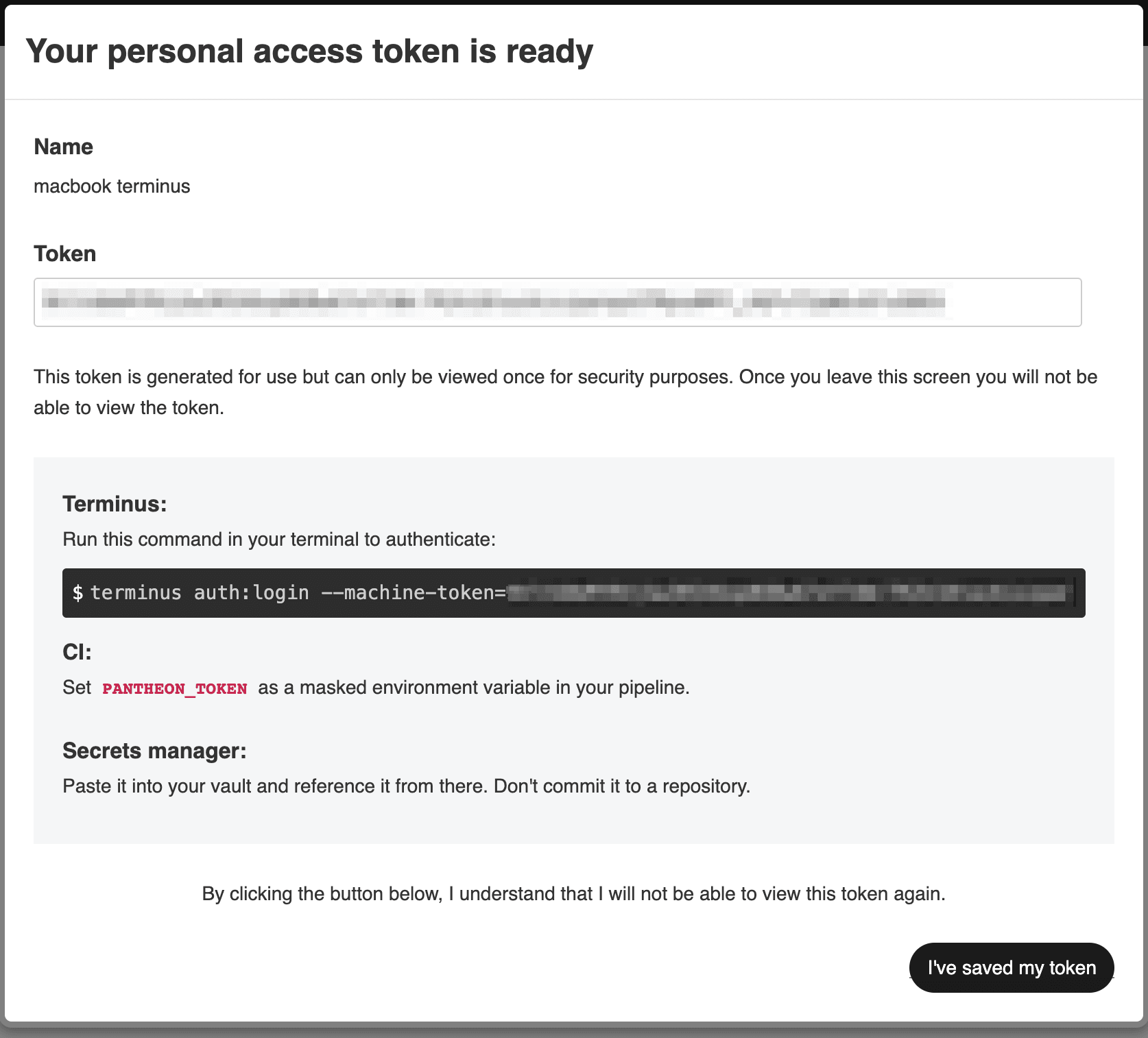
Authenticate into Terminus
Use your token to authenticate into Terminus, replacing <email@example.com> and <personal_access_token>:
The --machine-token flag accepts both Machine Tokens and Personal Access Tokens.
Personal Access Tokens are keyed to the email address associated with your Pantheon user account. Once a token has been used to authenticate Terminus, future sessions are authenticated with your email address:
Switch Between Multiple Pantheon User Accounts
Personal Access Tokens are paired with the email address associated with your Pantheon user account, so you can easily switch between users.
Log in to another account by running:
Renew an Expired Personal Access Token
Personal Access Tokens expire 90 days after creation. Once a token expires, terminus auth:login fails and you must generate a new token to continue.
-
Go to your Personal Settings and select Personal Access Tokens.
-
Click Add token to generate a new token, then authenticate Terminus with it as described above.
Revoke a Personal Access Token
For security purposes, we recommend removing tokens from your account when they are no longer used.
-
Go to your Personal Settings and select Personal Access Tokens.
-
Locate the token you want to delete, and click Revoke Token.
-
Type Revoke, and click I understand the consequences. Revoke this token.
Benefits of Using Personal Access Tokens
- Bot users with Personal Access Tokens can use Terminus to authenticate to and operate on Pantheon from a continuous integration (CI) server
- Users in organizations with SAML Single-Sign On (SSO) can authenticate with Terminus
Because Personal Access Tokens expire after 90 days, a CI/CD pipeline authenticated with one will need its stored secret rotated periodically. See Authenticate Terminus for Continuous Integration.
Legacy: Machine Tokens
Machine Tokens are a legacy authentication method. New tokens can only be created as Personal Access Tokens, but existing Machine Tokens are not deprecated and continue to work — they appear alongside your Personal Access Tokens in the same list in Personal Settings.
If you created a Machine Token before Personal Access Tokens were introduced, it:
- Provides the same access as your username and password
- Does not expire
- Could only be viewed when it was created
- Should be revoked when no longer used to help keep your account safe
Revoke a Machine Token
-
Go to your Personal Settings and select Personal Access Tokens.
-
Locate the Machine Token you want to delete — it's labeled accordingly in the list — and click Revoke Token.
-
Type Revoke, and click I understand the consequences. Revoke this token.
Troubleshooting
Microsoft Edge
Currently, Personal Access Tokens cannot be generated using Microsoft Edge browser. As a workaround, generate the token using Mozilla Firefox or Google Chrome, which has been tested as working on Windows 10.
Invalid Token Names
The following token names are not allowed, and will be automatically renamed to "Generic Feature Phone":
- pantheon hud
- pantheonHud
- pantheon-hud